ListTemplateId - :
100 – Generic List
101 – Document Library
102 – Survey
103 – Links List
104 – Announcements List
105 – Contacts List
106 – Events List
107 – Tasks List
108 – Discussion Board
109 – Picture Library
110 – Data Sources
111 – Site Template Gallery
112 – User Information List
113 – Web Part Gallery
114 – List Template Gallery
115 – XML Form Library
116 – Master Pages Gallery
117 – No-Code Workflows
118 – Custom Workflow Process
119 – Wiki Page Library
120 – Custom grid for a list
130 – Data Connection Library
140 – Workflow History
150 – Gantt Tasks List
200 – Meeting Workspace Series List
201 – Meeting Workspace Agenda List
202 – Meeting Workspace Attendees List
204 – Meeting Workspace Decisions List
207 – Meeting Workspace Objectives List
210 – Meeting Workspace text box
211 – Meeting Workspace Things To Bring List
212 – Meeting Workspace Pages List
301 – Blog Posts List
302 – Blog Comments List
303 – Blog Categories List
1100 – Issue Tracking
1200 – Administrator Tasks List
Showing posts with label Sharepoint List. Show all posts
Showing posts with label Sharepoint List. Show all posts
Wednesday, October 7, 2009


Saturday, July 4, 2009
How to creat Custon List -MOSS 2007 (Sharepoint)
As a sharepoint developer or administrator its a common task to create list.Let see how to create sharepoint List.
Step 1.Go to your sharepoint site in which you plan to create a list.Click on Site Action Menu (Top right side).Then Click on the Site Settings sub menu.

Step 2.In site settings page go to Site Administration section and click on Site Libraries adn Lists.

Step 3.In next page you can choose either you are going to create a New content or customizing existing content like announcement,calendar,tasks etc (predefined lists).We are going to click on Ne Content.

Step 4.Next step is to choose what kind of new content we need to create from the set of differe groups like Libraries,Communicvations,Tracking,Custom list web pages.We are going to choose custom List.

Step 5.In List creation Page specify the name for the list which we are going to create.Give some meaningfull name.

Step 6.Specify whether we need a new link for this list in quick launch menu which appear in left side of the site.If choose yes a new link will be added to the quick launch.

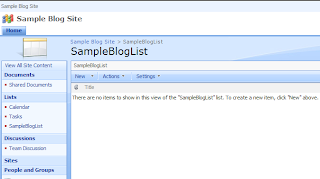
Step 7.After successfull creation of list you will redirected list page as follows.
Step 1.Go to your sharepoint site in which you plan to create a list.Click on Site Action Menu (Top right side).Then Click on the Site Settings sub menu.

Step 2.In site settings page go to Site Administration section and click on Site Libraries adn Lists.

Step 3.In next page you can choose either you are going to create a New content or customizing existing content like announcement,calendar,tasks etc (predefined lists).We are going to click on Ne Content.

Step 4.Next step is to choose what kind of new content we need to create from the set of differe groups like Libraries,Communicvations,Tracking,Custom list web pages.We are going to choose custom List.

Step 5.In List creation Page specify the name for the list which we are going to create.Give some meaningfull name.

Step 6.Specify whether we need a new link for this list in quick launch menu which appear in left side of the site.If choose yes a new link will be added to the quick launch.

Step 7.After successfull creation of list you will redirected list page as follows.

Subscribe to:
Posts (Atom)